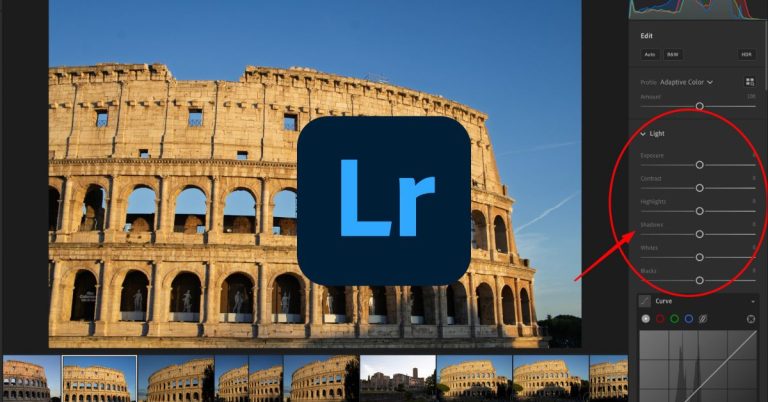

The Lightroom CC Workflow for Travel Photographers
If you travel often and want to edit photos on the go—whether that’s from your phone, a tablet, or your hotel bed—Lightroom CC is hands-down the best choice. It’s lightweight, fast, and built for mobility. Unlike Lightroom Classic, which was designed for desktop use and local hard drives, Lightroom CC runs entirely on cloud storage. That means every photo you import is automatically backed up and synced across your devices in full resolution.
Let’s break it down for clarity, since Adobe hasn’t exactly made this naming thing easy:
- Lightroom CC (also called just “Lightroom”) is the modern, cloud-based version. You can use it on desktop, iPad, laptop, and mobile. All your edits, albums, and presets stay in sync automatically.
- Lightroom Classic (LrC) is the older, more traditional desktop version. It’s great for people who want total control over local file storage, advanced export settings, and plug-ins—but it’s bulky, and syncing is more limited.
- Lightroom Mobile is technically just the mobile app version of Lightroom CC. If you’re editing on your iPhone or Android, this is what you’re using. Same engine, same sync.
For travel photographers, Lightroom CC shines because it removes friction. You don’t need to plug in SD cards, carry external drives, or worry about file backups. You can shoot, import, cull, and edit while you’re waiting for a train in Florence—and pick up where you left off that night on your laptop in Rome. It’s the kind of workflow that actually keeps up with how you move.
What Makes Lightroom CC So Powerful
Here’s the thing: Lightroom CC & Mobile isn’t just some stripped-down version of the desktop app. It’s the real deal—and in many ways, it’s the heart of the entire system. For travel photographers, that’s a game-changer.

You can:
- Edit full RAW files right on your phone or tablet
- Access every photo you’ve synced, no matter what device you’re using
- Shoot directly into Lightroom Mobile using your phone’s camera
- Work offline using Smart Previews, even when you don’t have internet
- Let your edits and metadata sync automatically the second you’re back online
This means you can shoot with your mirrorless or DSLR, import the files to your iPad or even your phone using a card reader, and start editing the same day—while sitting on a train in Tuscany, waiting for a ferry in Sicily, or killing time at a café in Kyoto.
You don’t have to wait until you’re back at your hotel with Wi-Fi. You don’t have to carry a laptop if you don’t want to. And you definitely don’t need to mess around with folders, catalogs, or file renaming when all you really want to do is get your shots edited and out into the world.
Travel-Friendly Photo Organization: Full Shoot → Picks → Selects
The last thing you want after a trip is a bloated, unorganized photo library that makes you never want to look at your images again. That’s why a simple 3-step system like this can save your sanity:
- Full Shoot = every photo imported from a session or location
- Picks = flagged images you want to keep
- Selects = your best-of-the-best, the ones worth editing and sharing
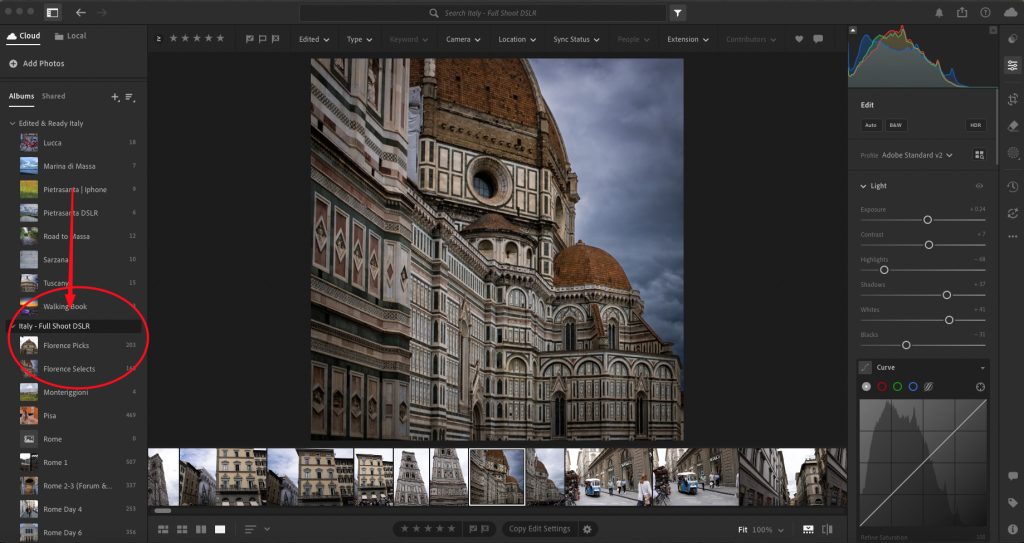
This approach works especially well in Lightroom CC because of how Albums function. Instead of cluttering your system with folders and subfolders, just create an Album for each stage of the process:
- Florence – Full Shoot
- Florence – Picks
- Florence – Selects
Or use stars and flags to filter inside one album—it’s flexible. The key is having a structure that travels with you. Since Lightroom CC syncs across every device, you can sort on your tablet, edit on your phone, and export from your laptop without ever wondering, “Wait, did I already flag this one?”
How to Cull Photos Fast (and Actually Enjoy It)
Let’s be honest: culling isn’t anyone’s favorite part of photography. But with Lightroom CC, it doesn’t have to be a time-sucking chore. You can do it while you wait for your food, wind down for the night, or kill time in transit.

Here’s a fast, no-fuss system:
- Trust your gut — good photos stand out
- Press “Z” to flag a photo as a Pick
- Don’t overthink it — just separate the good from the throwaways
- Use star ratings (1–5) to mark your final selects later
On desktop, the Z key is your friend for quick flagging. On mobile, you can tap the flag icon, but honestly, desktop is still faster if you’re doing a big batch. Either way, it all syncs—so wherever you do the work, it counts.
This way, you’re not sitting down to hundreds of photos with no direction. You’re walking into your edit session already knowing what’s worth your time.
What You Can Do from Your Phone or Laptop
Think you need a laptop to do serious photo editing? Think again. Lightroom CC Mobile (and the tablet version) uses the same engine as the desktop app, so you’re getting full-featured editing power—no matter what screen you’re working on.
Here’s what you can do right from your phone:
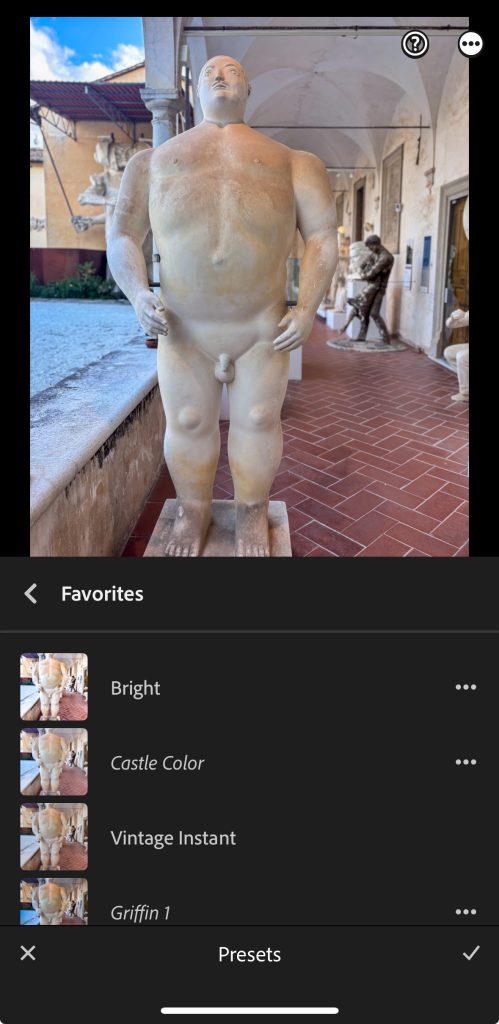
- Apply presets to batch-style your edits fast
- Use AI masking to select skies, subjects, or backgrounds with one tap
- Heal out distractions like sensor dust, tourists, or random signage
- Fix geometry to straighten lines, correct distortion, or level your horizon
- Export your images in different sizes for social, web, or portfolio uploads
This isn’t watered-down editing. It’s the same powerful tools—just in a format that fits in your hand (or carry-on). Whether you’re editing sunset shots on a train or finalizing your selects while stuck in a terminal, you don’t have to wait until you’re “back home” to start creating.
Backup & Sync Tips While Traveling
Travel photography gets messy fast if you don’t stay on top of your backups. Thankfully, Lightroom CC makes it pretty painless—as long as you build a rhythm into your days.

Here’s what works:
- Use cloud sync to automatically back up full-res files to Adobe’s servers
- Turn on airplane mode + use Smart Previews if your Wi-Fi is trash—your edits will still sync once you’re back online
- Import every night before bed (or after dinner)—it’s way easier to stay caught up than to dig through five days of backlog
The goal? Never lose a shot, never wonder “Did I back that up?”, and never find yourself frantically digging through your camera roll trying to remember what that perfect gelato shot was called.
Lightroom CC isn’t just a tool—it’s a workflow that actually works when you’re not standing still. Whether you’re sorting photos in a hostel bunk or editing RAWs on a ferry, the ability to stay organized, backed up, and creatively in motion makes a difference. No hard drives. No guesswork. Just your photos, wherever you are.
That’s the whole point—making space for the photography part of travel photography.